

To create a dropdown menu on Wix, open the Editor, click the '+' icon, go to 'Menu & Search', pick a menu style, then drag pages under a parent item in the 'Manage Menu' panel to nest them. The whole setup takes five minutes. This guide walks through each step with screenshots, covers how to style the Wix dropdown menu to match your brand, how to configure it on mobile, and how to fix the most common problems that come up after setup.
This guide shows you exactly how to create a dropdown menu on Wix, step by step. You’ll also learn how to style it, make it work on mobile, and get the most out of your Wix navigation menu. If you’re just getting started with the platform, it’s worth reading our guide on how to use Wix before getting started.
Whether you’re a Wix novice or an experienced web designer, you’ll learn how to incorporate a professional-looking dropdown menu that aligns with your brand and helps visitors find what they’re looking for.
Step-by-Step Guide to Creating a Dropdown Menu on Wix
Creating a dropdown menu on Wix is a simple process that can greatly improve your website’s navigation and user experience. Integrating this element into your site significantly improves navigation and makes it easier for visitors to find what they need. This guide will walk you through the steps, from selecting a menu design to adding pages and publishing your site.
Here’s how you can get started:
Step 1: Click ‘+’ and Select ‘Menu & Search’
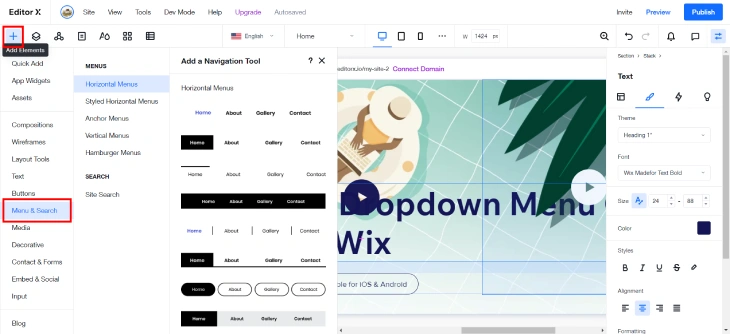
In your Wix Editor, click the ‘+’ icon to open the add panel. Click on ‘Menu & Search’ to reveal the different types of menus you can add to your page. This section also lets you add a search bar in Wix to give visitors another way to find content quickly.
Step 2: Select Your Preferred Menu Design
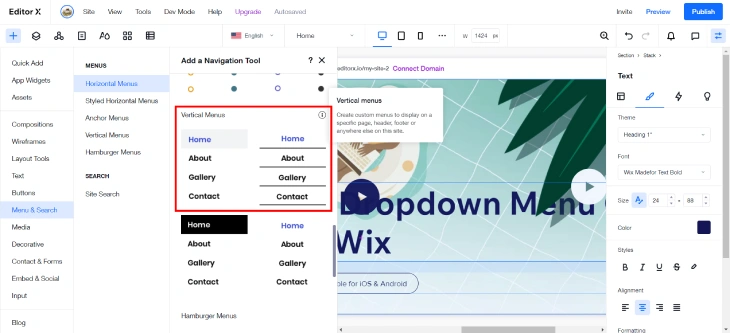
Wix offers a variety of pre-designed menu templates, each with its own style and layout. Choose a menu design that fits your website’s aesthetic and brand identity. Click on your preferred design to add it to your page. You can customize the design later to better match your site’s look and feel.
Step 3: Manage Your Menu
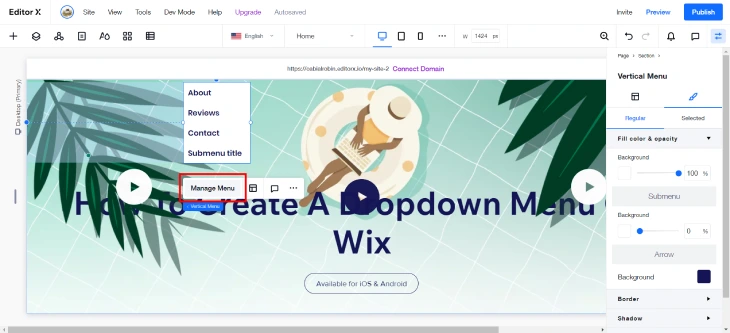
After adding the menu, click on it and select ‘Manage Menu.’ This opens the menu settings panel where you control which pages appear and how they are ordered.
Step 4: Add Relevant Pages to Your Dropdown Menu
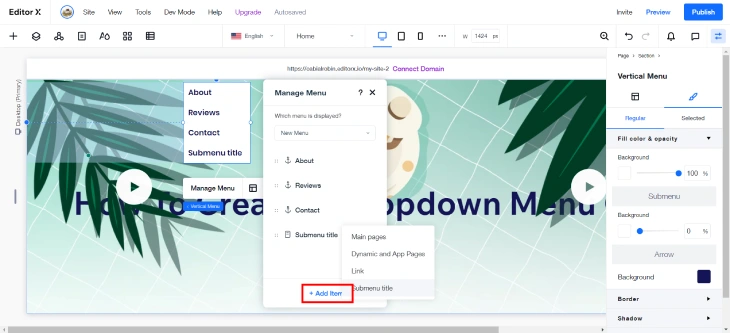
In the ‘Manage Menu’ settings, you can drag and drop pages into your preferred order. To create a dropdown in Wix, nest a page under a parent menu item by dragging it slightly to the right, which turns it into a submenu item. You can also click ‘Add Item’ to add new pages directly. If your site uses subpages, check out our guide on how to create a subpage in Wix to set those up first.
Step 5: Publish Your Site
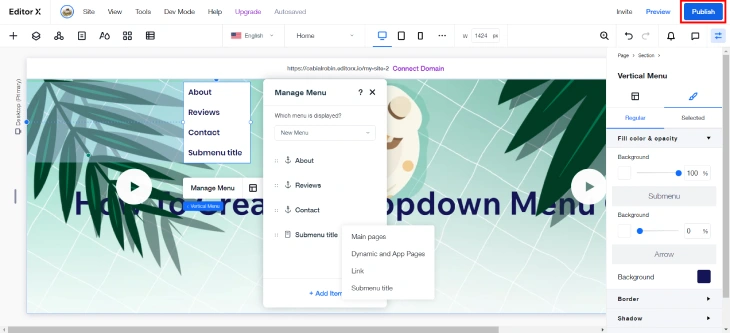
Once you’ve set up your Wix dropdown menu, click the ‘Publish’ button at the top right corner of the Editor to make your changes live. Check your website to confirm the dropdown functions correctly and that every link takes visitors where it should.
Customizing Your Wix Dropdown Menu
Once your dropdown menu on Wix is working, you can style it to match your brand. Wix gives you granular control over the appearance of your navigation menu, so there’s no need to settle for a default look.
Change Colors and Fonts
Click on your menu element in the Editor, then select ‘Design.’ Here you can change the background color, text color, font family, and font size for both the main menu items and the dropdown items. For a cohesive look, match these settings to your site’s overall color palette.
Adjust Hover and Active States
Under the Design panel, switch to the ‘Hover’ or ‘Selected’ tab to control how menu items look when a visitor hovers over them or is on that page. Adding a contrasting hover color makes your Wix navigation menu feel more interactive and polished.
Control Spacing and Layout
The ‘Layout’ tab in the Design panel lets you adjust item spacing, menu orientation (horizontal or vertical), and the direction the dropdown opens. If your menu is near the bottom of a header, set the dropdown to open downward. If it’s near an edge, you can flip the direction to keep it on screen.
Add Dividers and Separators
For menus with many items, dividers help visitors scan faster. In the Design panel, enable dividers between menu items to add visual separation without extra pages or headings.
Wix Dropdown Menu on Mobile
By default, Wix creates a separate mobile version of your site. Your desktop dropdown menu does not automatically carry over to mobile in the same form. Wix converts it to a hamburger menu for smaller screens. Here’s how to manage it.
Switch to the Mobile Editor
In the Wix Editor, click the mobile icon at the top of the screen to switch to the Mobile Editor. This shows you exactly how your site looks on phones and tablets.
Configure the Mobile Menu
Click on the hamburger menu icon (the three horizontal lines) and select ‘Manage Menu.’ The same pages and submenu structure you set up on desktop will be available here. Drag pages under parent items to preserve your dropdown hierarchy on mobile.
Style the Mobile Menu
Tap the mobile menu element and select ‘Design’ to adjust colors, font size, and spacing for mobile. Because touch targets need to be larger than mouse hover areas, increase item height and font size slightly compared to your desktop settings. This makes it easier for visitors to tap the correct menu item without frustration.
Test on a Real Device
Use the Wix preview mode on mobile to check the menu, but also test it on an actual phone if possible. Open your published site on a mobile browser and tap through every dropdown item to confirm links work and the layout looks clean.
Benefits of Adding a Dropdown Menu on Wix
Adding a dropdown menu on Wix can significantly enhance your website’s functionality and user experience. Dropdown menus help organize content, making it easier for visitors to find what they need. This small design feature can lead to a more professional-looking site and improve overall engagement.
Here are the key benefits of incorporating a dropdown menu on your Wix website:
Improved User Experience
A dropdown menu simplifies navigation by grouping related pages under one heading, reducing clutter and making it easier for users to find specific information quickly. This organized structure enhances the browsing experience, especially for websites with extensive content. Dropdown menus on Wix allow you to present your content intuitively and minimize the clicks needed to reach any page.
Enhancing Brand and Aesthetics
The customization options for Wix dropdown menus let you integrate navigation naturally into your site’s visual branding. Well-designed dropdown menus improve your website’s look, aligning with your brand’s style and overall design. Customizable options in Wix allow you to match the menu to your brand’s color scheme and typography, enhancing visual coherence. For broader design guidance, see our walkthrough on how to design a website with Wix.
Increased Website Engagement
Dropdown menus encourage visitors to explore more sections of your website by making all options visible at a glance. This increased visibility can lead to higher engagement as users discover content they might have otherwise missed. Easier access to various pages helps retain visitors, reducing bounce rates and promoting deeper interaction with your site.
Optimization for Search Engines
A well-structured Wix navigation menu can positively impact your search engine optimization (SEO). Properly structured dropdown menus improve your website’s SEO by ensuring that all important pages are linked and accessible. Search engines can crawl and index your site more effectively with clear, organized navigation, leading to better search rankings and more organic traffic.
Wix Dropdown Menu Not Working? Common Fixes
Even when you follow the setup steps correctly, dropdown menus on Wix can sometimes behave unexpectedly. Here are the most common problems and how to fix each one.
Dropdown Not Showing on Mobile
Wix automatically converts dropdown menus into a hamburger menu on mobile. If the hamburger icon appears but clicking it shows no dropdown structure, open the Mobile Editor and check that the parent-child page hierarchy is preserved there. The mobile menu needs to be configured separately from the desktop menu.
Submenu Items Not Appearing
If you’ve nested pages under a parent item but the submenu doesn’t appear, check that the parent item is not set as a direct link to a page. Parent items that link directly to a URL sometimes don’t show their dropdown on hover. Try setting the parent item to “No Link” if its only purpose is to serve as a dropdown header.
Dropdown Closes Before You Can Click an Item
This is usually a CSS hover delay issue. In the Design panel, check if there’s a hover transition set on the menu. If the menu disappears too quickly, try reducing the transition speed or switching to a click-to-open menu style instead of hover.
Menu Items Appear in the Wrong Order
Drag-and-drop reordering in the Manage Menu panel is the only way to change menu item order. If your order reset after publishing, make sure you saved the change before clicking Publish. Wix sometimes reverts unsaved menu structure changes on publish.
Dropdown Menu Not Visible on a Specific Page
If your site uses a page-specific header (different from the default header), that page may have its own menu element that isn’t connected to your main menu settings. Check if the page uses a custom header and update its menu separately.
External Link in Dropdown Opens in the Same Tab
External links in Wix dropdown menus default to opening in the same tab. To change this, go to Manage Menu, click the three-dot menu next to the external link item, select Edit, and check “Open in new tab.”
Wix Studio Dropdown Menu vs Classic Editor: Key Differences
If you're building in Wix Studio rather than the classic Wix editor, the dropdown menu setup is similar but different in a few places worth knowing.
Where to Find the Menu Element in Wix Studio
In Wix Studio, open the 'Add Elements' panel on the left and look for the 'Navigation' section. The menu element lives there rather than under 'Menu & Search' as it does in the classic editor. Add it to your header layout or to the page directly, depending on your site structure.
Dropdown Nesting in Studio
The nesting process is the same: open 'Manage Menu' and drag a page to the right under a parent item to make it a dropdown item. The main difference is that Studio menus support responsive breakpoints more granularly. Instead of Wix automatically converting your menu to a hamburger on mobile, Studio lets you control exactly at what screen width the menu collapses and how it looks at each breakpoint.
Mega Menus in Wix Studio
Wix Studio supports a mega menu layout that the classic editor doesn't offer. A mega menu expands into a wide panel with multiple columns of links, images, and descriptive text. This is useful for sites with many pages organized into several categories, like an online store or a content-heavy publication, where a standard single-column dropdown would be too long to scan quickly.
Design Controls: Studio vs Classic
Studio gives you more granular control over menu styling than the classic editor. You can target individual breakpoints with separate hover states, set different background colors per device size, and control animation timing directly from the design panel. If you've found the classic editor's menu styling limiting, Studio removes most of those constraints. The trade-off is a slightly steeper learning curve for the design controls themselves.
For sites built in Wix Studio, this is also where you'd set up Wix drop down list elements within forms and other input components, which use a separate UI element from the navigation menu but follow the same general principle of nesting options under a parent label.
Wix Dropdown Menu: Summary and Next Steps
Creating a dropdown menu on Wix is one of the most effective things you can do to improve your website’s navigation and user experience. You now know how to build the menu from scratch, style it to match your brand, set up subpages correctly, and make sure it works well on mobile devices. A well-structured Wix dropdown menu improves the look of your site and encourages visitors to explore more pages, leading to better engagement and lower bounce rates.
For content-heavy sites, pairing a dropdown menu with a Wix search bar gives visitors two complementary ways to find content: browse through structure or search directly for what they need.
Remember, a user-friendly Wix navigation menu is key to retaining visitors and providing a smooth browsing experience. By taking the time to set up, customize, and test your dropdown menu, you’re demonstrating a commitment to high-quality web design. This focused effort on navigation can make a significant difference in how users interact with your content, and in the results your site delivers.
* read the rest of the post and open up an offer