

Running an online store alongside a physical location can be fantastic for reaching a wider audience. But managing inventory, sales data, and payments across separate systems can become a headache. Here's where the Wix Square POS integration comes in. Connecting your Wix website with Square Point of Sale (POS) allows you to accept payments, track inventory, and generate reports -- all through one system.
The good news is that the process to connect Wix and Square POS is straightforward. All you need to do is go to your Wix dashboard, access the payment settings, and link your Square account. Whether you're new to Wix or an experienced user, this guide walks you through every step. You'll also find it helpful to review our Wix POS system review to understand what the platform natively supports before you get started.
Step-by-Step Guide to Connect Wix & Square POS
The Wix Square POS integration works through Wix's built-in payment settings. Once linked, you can manage payments across your online store and physical location from a single dashboard. The process takes just a few minutes to complete.
Here's how to connect Wix Square step by step.
Step 1: Go to 'Settings' on Your Wix Dashboard and Click 'Accept Payments'
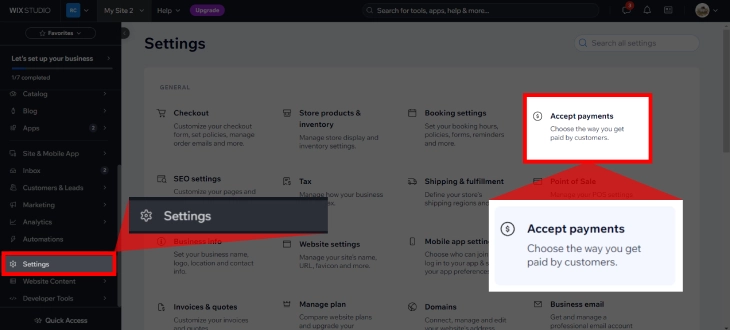
On your Wix dashboard, scroll down and click on 'Settings'. A new window will load with many options. Find and click on the 'Accept Payments' tab. This section is where you manage all payment-related settings for your Wix site. If you haven't configured payments yet, our guide on how to set up Wix Payments covers the basics before you add Square.
Step 2: Click 'See More Payment Options'

Wix usually displays payment methods for credit cards, debit cards, PayPal, and manual payments. If Square isn't immediately visible, look for a button or link that says 'See More Payment Options'. Clicking this will expand the list of available payment providers, including Square POS.
Step 3: Click 'Connect' for Point of Sale (POS)

Scroll through the expanded list of payment options until you find 'Point of Sale'. Square is the default provider for this option. Beside it, you should see a 'Connect' button. Click this button to initiate the connection between your Wix site and Square POS. If you are still deciding between Wix's built-in POS and Square, our Wix POS system review and evaluation breaks down the differences in detail.
Step 4: Create a Square Account or Click 'Connect'
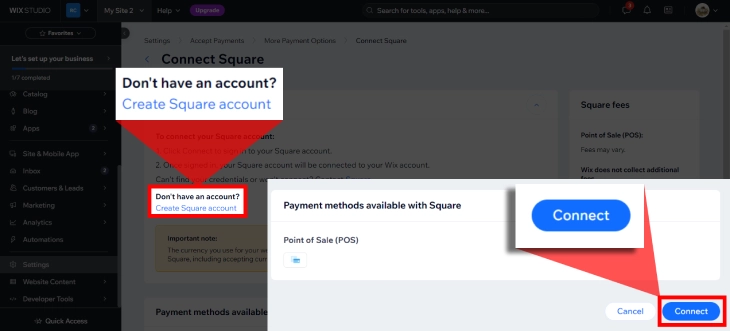
A new window will load prompting you to create a new Square account or connect an existing one. If you already have a Square account, click 'Connect' and enter your Square login credentials.
If you're new to Square, you'll need to create an account by providing the necessary information. Once connected, Wix and Square will begin syncing, allowing you to manage your POS system through your Wix dashboard.
Why Use the Wix Square POS Integration?
Managing a business with both an online store and a physical location takes real effort. The Wix Square POS integration brings your sales channels together so you spend less time jumping between systems and more time running your business.
Here are the key reasons to connect Wix and Square POS:
Simplify Online and In-Store Sales
With Wix Square POS connected, all payment data flows into one place -- your Square Dashboard. This makes it easier to track and compare the performance of both your online and in-store sales channels without switching between platforms.
Easier Inventory Management
Manually tracking inventory across separate channels is a recipe for errors. The Wix-Square integration lets you monitor stock levels across your online store and physical locations, so you can adjust inventory based on what's actually selling. Note that automatic inventory sync has limitations -- see the troubleshooting section below for details.
Improve Reporting and Analytics
Having all your sales data in one place gives you a clearer picture of business performance. The Wix and Square integration lets you generate reports that combine online and in-store sales, helping you make more informed decisions about inventory, staffing, and marketing.
Choose the Right Payment Processor
Before connecting Square, it is worth confirming which payment processor you want to handle your online store transactions. Square handles in-person payments through this integration, but your Wix online store still needs a separate payment solution for web checkouts. Our Wix Payments vs Stripe comparison breaks down fees, features, and which is better for different store types.
Reduce Administrative Tasks
Reconciling sales data from multiple sources is time-consuming. Integrating Wix and Square eliminates much of that manual work, saving time and reducing the risk of errors. You can also manage your online store catalog -- items, descriptions, and images -- directly from Wix, keeping everything in sync.
Provide a Consistent Customer Experience
Customers expect a consistent experience whether they buy online or in person. The Wix and Square integration keeps the checkout process cohesive across both channels, making it easy for customers to purchase and access their order information wherever they shop.
If you also sell through other platforms, it's worth reading how connecting Shopify to Wix compares as a multi-channel approach for your business.
Troubleshooting Common Wix Square POS Issues
Before diving into specific problems, it's important to understand what the Wix Square POS integration actually covers -- and what it doesn't. The integration connects Wix to Square for online payment processing only. There is no native, automatic sync between Wix and Square's physical point-of-sale system for inventory or in-store transactions. Understanding this upfront will save you a lot of troubleshooting time.
Here are the most common issues users encounter and how to address them:
Inventory Not Syncing
This is one of the most reported pain points with the Wix Square integration. The two platforms do not automatically synchronize inventory levels between them. If you sell an item in your physical store through Square POS, that change won't automatically reflect in your Wix store inventory, and vice versa.
To work around this, you'll need to update inventory manually in both systems, or use a third-party tool like Thrive by Shopventory or Finale Inventory that bridges Wix and Square. These tools can automate inventory updates across channels and reduce the risk of overselling.
Transactions Not Processing
If customers are experiencing issues completing transactions on your Wix site, first confirm that the Square integration is properly configured. Double-check that your Square account is correctly linked in your Wix payment settings and that the currency and fee settings are correct.
If issues persist after verifying the connection, contact Square support to investigate any account-level or payment processing problems.
Connection Errors
Some users report difficulties connecting their Wix and Square accounts during the initial setup. This is often caused by account authentication issues or browser-related problems.
If you encounter connection errors, try logging out of both accounts and back in, clearing your browser cache, or attempting the connection in a different browser. If the problem continues, reach out to Wix or Square support for further assistance.
Inconsistent Reporting
Because Wix and Square maintain separate sales records, you may notice discrepancies in reporting between the two platforms. This is expected -- the integration does not merge reporting databases.
To reconcile differences, manually cross-reference sales figures and transaction details between both dashboards. Identifying which platform is the source of truth for each data type (e.g., online sales in Wix, in-store sales in Square) will help keep your reporting consistent.
No Direct In-Store POS Sync
This is the most important limitation to understand: while Wix connects to Square for online payment processing, there is no direct link between Wix and Square's physical POS hardware or in-store transaction data. In-store sales made through Square's POS terminal will not automatically appear in your Wix store sales records.
You'll need to manage in-store and online operations somewhat separately. Options include manually entering Square POS sales data into your Wix reporting, or using a third-party integration tool to bridge the two systems. Keeping a close eye on inventory across both channels is essential to avoid overselling.
Managing Your Business After Connecting Wix and Square
Setting up the Wix Square POS integration is a practical step for any business running both an online store and a physical location. By linking the two platforms through Wix's payment settings, you can accept Square payments online, consolidate sales reporting, and reduce the manual work of managing two separate systems.
Just keep in mind that the integration handles online payments -- it doesn't automatically sync in-store POS transactions or inventory between platforms. For a complete picture of what Wix supports for in-person selling, check out our Wix POS system review before committing to a setup. If you are also deciding between Wix's native payment processor and a third-party option like Stripe, our Wix Payments vs Stripe comparison covers the key differences in fees, features, and country availability.
Once you've connected Wix and Square, take time to explore the full range of features available to you. For example, use Wix automations to handle routine tasks, or leverage Square's built-in marketing tools to reach new customers. With both platforms working in tandem, you can focus on what matters most -- growing your business and delivering a great experience for your customers.
* read the rest of the post and open up an offer