

Wix makes it possible for teams to work on the same website without sharing login credentials. You can invite team members, clients, or contractors, assign them specific roles, and control exactly what they can access, all from the Roles & Permissions section of your dashboard.
This guide walks through how to set up collaboration in Wix, what each role actually lets people do, real-world examples of who to assign each role to, and the differences between collaborating in the standard Wix Editor vs Wix Studio. Whether you're sharing your Wix website link with a client or giving an editor access to publish blog posts, the steps below cover the full process.
- Wix allows real-time collaboration, letting multiple users edit the website simultaneously.
- Assign specific roles and permissions to control access and maintain site security.
- Increase productivity by allowing team members to work on different site aspects at the same time.
Step-by-Step Guide to Collaborating in Wix
Setting up collaboration on a Wix website takes about two minutes. Using Wix's dashboard, you can invite people, set their role, and send the invite. They'll receive an email to accept and get started.
Here's how you can get started:
Step 1: Log Into Your Wix Account
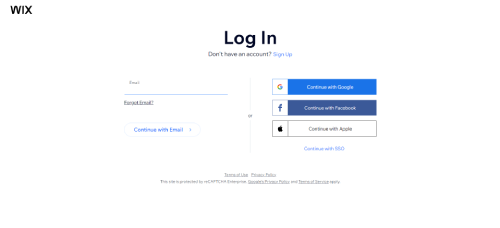
Start by accessing Wix and log into your account. You'll need to create an account if you're new to Wix. Sign up using your email address or connecting to a social media account.
Step 2: Go to Roles & Permissions in Your Dashboard
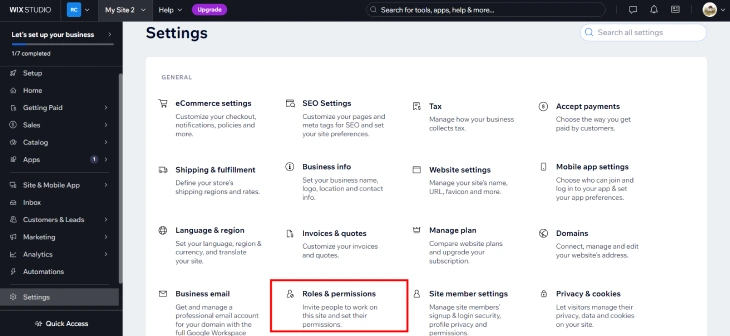
Once logged in, go to your dashboard's 'Roles & Permissions' section. This area lets you manage who has access to your site and what they can do. Only the site owner can access Roles & Permissions. Collaborators you invite will not see this section.
Step 3: Click Invite Collaborators
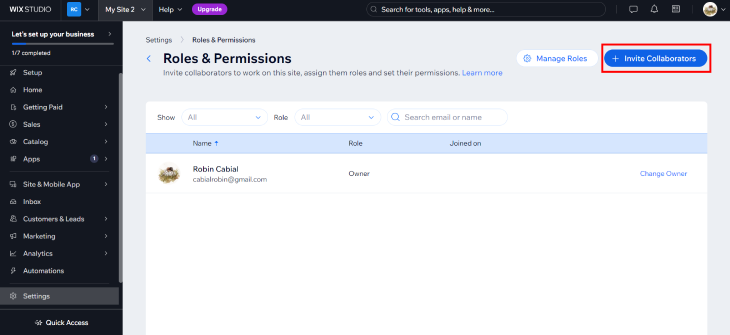
In the 'Roles & Permissions' section, you will find the 'Invite Collaborators' button. Clicking this opens the invite flow where you can add someone by email and assign their role.
Step 4: Enter Your Collaborator's Email Address
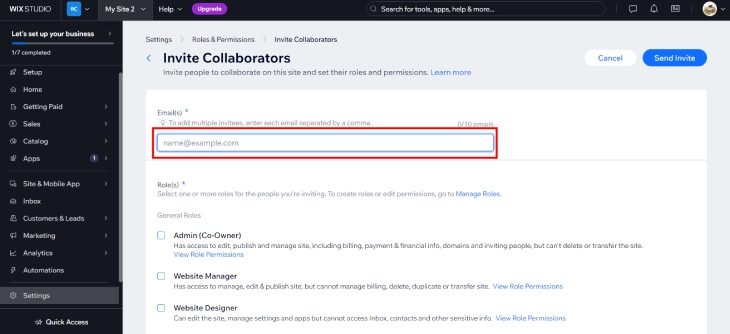
After clicking 'Invite People,' enter the email addresses of the individuals you want to invite. Double-check the addresses before sending. The invite goes straight to that inbox.
Step 5: Select the Checkbox on the Relevant Roles

For each collaborator, select the role that matches what you want them to do. Each role gives different levels of access. The next section breaks down exactly what each role can and cannot do.
Step 6: Click Send Invite
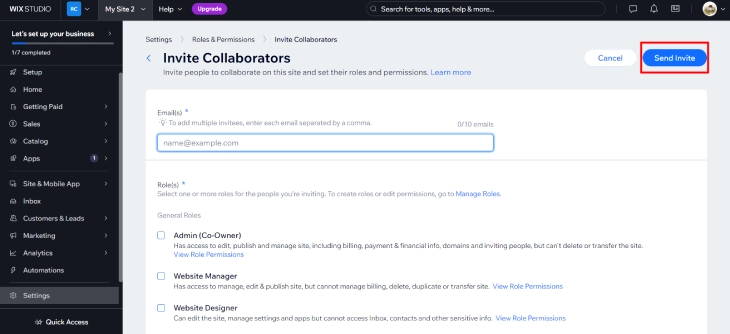
Once you've entered the email addresses and selected the appropriate roles, click 'Send Invite.' Your collaborators will receive an invitation email. Once they accept, they'll have access to the parts of your site that match their role.
Wix Collaboration Roles Explained
Wix offers several roles, each designed for a specific type of team member. Assigning the right role matters. It's the difference between giving a blog writer the ability to publish posts and accidentally giving them access to edit your entire site.
Here's what each role can do:
- Admin: full access to everything except billing and account ownership. Can edit the site, manage apps, access all dashboard sections, and invite other collaborators. Use this for trusted business partners or agency leads.
- Editor: can edit site content and pages in the Wix Editor, but cannot access business tools like Wix Stores orders, Bookings, or account settings. Good for designers or developers handling the site build.
- Blog Writer: can draft and submit blog posts for review, but cannot publish directly. Use this for freelance writers or content contributors who shouldn't have full site access.
- Blog Editor: can write, edit, and publish blog posts. Cannot access anything outside the blog. Ideal for a content manager running your blog independently.
- Back Office Manager: access to orders, invoices, and product catalog in Wix Stores, but no access to site editing. Good for a store operations person who handles fulfillment.
- Customer Service Manager: can view and manage customer inquiries and orders, but cannot edit site content or access financial data. Use for customer support staff.
- Store Manager: can manage the full Wix Store (products, orders, shipping, discounts) without accessing the rest of the site. Ideal for an ecommerce manager.
Note: no collaborator role gives access to billing information, plan upgrades, or the ability to transfer or delete the site. Those actions stay with the account owner only.
Wix Collaborator Role Permissions: Full Comparison
Knowing which role to assign becomes much easier when you can see exactly what each one unlocks. Here's a direct comparison across all 7 roles:
| Permission | Admin | Editor | Blog Editor | Blog Writer | Store Manager | Back Office Manager | Customer Service Manager |
|---|---|---|---|---|---|---|---|
| Edit site design and pages | Yes | Yes | No | No | No | No | No |
| Write and publish blog posts | Yes | Yes | Yes | Draft only | No | No | No |
| Manage store products and pricing | Yes | No | No | No | Yes | Yes | No |
| View and process orders | Yes | No | No | No | Yes | Yes | View only |
| Access customer contacts | Yes | No | No | No | Yes | Yes | Yes |
| Install and remove apps | Yes | No | No | No | No | No | No |
| Invite other collaborators | Yes | No | No | No | No | No | No |
| View billing information | No | No | No | No | No | No | No |
| Transfer or delete site | No | No | No | No | No | No | No |
Real-World Wix Collaboration Scenarios
The right role becomes clearer with a specific situation in mind. Here are the most common team setups and the right role for each person:
Scenario 1: Freelancer Building a Site for a Client
You're a web designer building a Wix site for a client. You need full design access. The client wants to review blog content before it goes live.
- You (designer): Admin access. You handle all site design, install apps, and manage the final handoff.
- Client during the build: no access needed until you're ready for review. At launch, transfer site ownership to them and remain as an Admin collaborator if you'll provide ongoing support.
- Content writer (if applicable): Blog Writer. Their posts go into a draft queue for the client to approve before publishing.
Scenario 2: Ecommerce Store With a Fulfillment Team
You run an online store. Your partner handles product listings and inventory, and a customer service rep manages returns and inquiries. You don't want either person touching your site design or billing.
- Partner managing products: Back Office Manager. Full access to products, orders, and inventory without any design or account access.
- Customer service rep: Customer Service Manager. They can view and respond to orders and customer inquiries but cannot edit products, pricing, or site content.
- What to avoid: giving your fulfillment partner Admin or Editor access. They don't need it, and accidental design changes are a real risk.
Scenario 3: Small Business With a Part-Time Content Writer
You want a content writer to produce blog posts while you focus on the business. You want to review everything before it's published.
- Content writer: Blog Writer. They draft posts and submit for review. Nothing goes live without your approval.
- You: keep Admin access to review, edit, and publish their drafts.
- Why not Blog Editor for them: Blog Editors can publish immediately without review. If your writer posts something with an error or off-brand message, it's live before you see it.
Scenario 4: Agency Managing Multiple Client Sites
You're running a Wix agency with multiple clients. Each client needs some access to their own site, but you need to maintain the ability to make updates across all accounts.
- Your agency lead: Admin access on each client site. This lets you make updates, add apps, and manage settings across projects.
- Individual clients: transfer site ownership to them after launch. You can remain as an Admin collaborator so you keep access without owning their billing.
- Junior designers on your team: Editor access on sites they're actively building. Upgrade to Admin only when they're ready to handle full account management.
Benefits of Collaborating in Wix
Wix's collaboration tools are built around keeping teams productive without creating security risks. Here's what you get:
Real-Time Collaboration
Wix allows multiple team members to work on the same website at the same time. Changes appear as they happen, so there's no need to coordinate who's "in" the editor before making updates. This reduces delays and keeps projects moving.
Clear Communication
Wix Chat enables instant messaging within the platform, which helps resolve issues quickly and keeps everyone on the same page. Team members can leave comments, ask questions, and provide feedback without leaving the site dashboard.
Customizable Access Levels
The role system means you control exactly what each person can see and do. A blog writer never needs to touch your store settings. A customer service manager never needs access to your page layouts. This keeps the site cleaner and reduces the chance of accidental changes.
Increased Productivity
With the right roles in place, team members can work at the same time on different parts of the site: one person updating product listings while another publishes a blog post. No waiting in line for editor access.
Wix Studio vs Wix Editor: Collaboration Feature Differences
The collaboration tools described so far apply to the standard Wix Editor. Wix Studio (the professional-grade editor, formerly Editor X) has significantly more advanced team features that change how agencies and larger teams work together:
Live Comments Directly on Design Elements
Wix Studio lets collaborators leave comments directly on specific sections, images, or elements within the editor, not just in a separate feedback tool. A client can click on a banner and write "Change this to dark blue" without calling you or sending a screenshot. You see the comment in context, make the change, and mark it resolved. This replaces the messy back-and-forth of email threads with screenshots attached.
Real-Time Co-Editing
Multiple team members can edit the same Wix Studio site at the same time. Each editor's cursor is visible on screen so no one accidentally overwrites another person's changes. This is the same co-editing approach that design tools like Figma use, and it cuts the back-and-forth of "are you in the editor right now?" down to zero.
Task Assignment Within the Project
In Wix Studio, you can create tasks directly within a project and assign them to specific team members. A task might be "Update the homepage hero image" or "QA the checkout flow on mobile." Each task has a status (open, in progress, done) and an assignee, so project progress is visible without switching to a separate project management tool.
Detailed Version History
Wix Studio keeps a detailed log of every site change with the ability to restore previous states. If a team member accidentally breaks a layout or publishes the wrong version, you can roll back. The standard Wix Editor has limited version history. Wix Studio's is more granular and goes back further.
Granular Role-Based Permissions
Wix Studio extends the basic collaborator roles with more precise permission settings. You can control which sections of a site a collaborator can edit, which gives agencies tighter control when clients want limited access to update their own content areas without touching the overall design structure.
If your team does serious design work or you manage multiple client sites, the collaboration tools in Wix Studio are a meaningful upgrade over the standard editor.
Tips for Managing Wix Collaboration
- Review collaborators regularly. If a contractor finishes their work, remove their access. Go to Roles & Permissions and click "Remove" next to their name.
- Start with the most restrictive role. Give people the minimum access they need to do their job. You can always upgrade a role later. It's harder to undo damage from over-permissioned access.
- Use Blog Writer (not Blog Editor) for freelancers. If you want to review posts before they go live, the Blog Writer role requires approval before publishing. Blog Editors can publish immediately.
- Keep admin access to trusted people only. Admins can change your site's settings, install apps, and manage other collaborators. Reserve this role for business partners or your agency lead.
Common Wix Collaboration Mistakes to Avoid
- Giving Admin access by default: most collaborators don't need Admin access. Start with the most restrictive role that covers their actual tasks. You can always upgrade later.
- Forgetting to remove departed team members: former contractors, employees who left, or past agencies may still have access if you didn't remove them. Check your Roles & Permissions list quarterly and remove anyone who no longer works with you.
- Using Blog Editor instead of Blog Writer for unreviewed content: if you want to review posts before they're published, assign Blog Writer (not Blog Editor). Blog Editors publish immediately without a review step.
- Sharing your account login instead of using collaborator invites: sharing credentials bypasses the entire role system. If that person makes unintended changes or you need to revoke access, there's no audit trail. Always use the invite system.
- Not using Wix Studio for agency work: if you're building sites for clients on the standard Wix Editor, you're missing the collaboration tools (live comments, task assignments, version history) that make agency workflows significantly faster. The upgrade is worth it once you're managing more than 2-3 active client projects simultaneously.
How to Transfer a Wix Site to a Client
When a web design project wraps up, handing the site over to the client is the final step. Wix handles this through a formal ownership transfer, not just a role change. Here's exactly how it works and what both parties can expect.
Starting the Transfer
Go to your Wix dashboard, open the site you want to transfer, and go to Settings, then Transfer Site. You'll be prompted to enter the client's email address. The client must already have a Wix account tied to that address. If they don't have one yet, they'll need to create one before you can complete the transfer.
What Happens to Your Access After the Transfer
Once the client accepts the transfer, ownership moves to their account. Your collaborator access does not carry over automatically. You lose access to the site unless you take one of two actions before or after the transfer:
- Before transferring: have the client invite you as an Admin collaborator, then complete the transfer.
- After transferring: ask the client to go to their Roles & Permissions and invite you back as an Admin.
Either way, staying on as an Admin collaborator after the transfer is the standard agency model. You keep editing and management access without being the account owner, which means you're not responsible for their billing or plan decisions.
Transfer Site vs. Add as Collaborator: The Key Difference
These two options solve different problems. Adding someone as a collaborator gives them access to the site without changing who owns it. Transferring the site moves full legal and billing ownership to the other person. After a transfer, the new owner controls the plan, billing, and the ability to delete or transfer the site again. You, as a collaborator, control only what your assigned role allows.
Why Agencies Should Transfer Ownership Instead of Keeping Sites in Their Own Account
Some agencies keep all client sites under a single agency Wix account. This creates three problems:
- The client has no direct relationship with Wix. If they ever part ways with the agency, accessing "their" site requires the agency's cooperation.
- Billing runs through the agency account, which creates confusion about who owes what and complicates the separation of costs per client.
- If a dispute arises, the client cannot independently access or recover their own website.
Transferring ownership puts the client in control of their own asset. The agency stays involved as an Admin collaborator for ongoing maintenance, but the client pays Wix directly and can see exactly what plan they're on.
What the Client Receives When You Transfer
Wix sends the client a notification email explaining that a site has been transferred to them. The site then appears in their My Sites dashboard automatically. They take over any active billing subscriptions tied to the site, including premium plans and connected apps. Make sure the client is aware of this before initiating the transfer, as they may need to update their payment details in Wix.
How to Audit Who Changed What on Your Wix Site
Once multiple people have access to a Wix site, knowing who changed what becomes important. Wix's change tracking options vary depending on which editor you use, but there are practical steps you can take regardless of your setup.
Using Site History to See Published Versions
Wix keeps a record of every time the site was published. To access it, go to your Dashboard, click More Options (the three-dot menu next to the site), and select Site History. You'll see a list of published versions with timestamps showing when each version went live. Clicking on a version lets you preview what the site looked like at that point.
The key limitation: Site History shows the state of the site at each publish event, not individual edits made between publishes. If a collaborator made ten changes in the editor and published once, you see one entry, not ten. It tells you when the site changed, not necessarily what changed in detail.
Per-User Change Tracking in Standard Wix Editor
The standard Wix Editor does not currently offer a per-user change log. There is no built-in report that shows "Andy edited the homepage at 3pm" or "Sarah deleted a section on Tuesday." If you need that level of accountability, the standard editor falls short.
The practical workaround: agree on a publishing schedule across your team so only one person publishes at a time, on a set day (for example, every Friday). This limits the window of possible changes and makes it easier to identify who was responsible for a given publish by comparing the timestamp against your schedule.
Wix Studio's More Detailed Change Log
Wix Studio keeps a more detailed version history tied to individual collaborator accounts. Because each team member logs in with their own credentials, Wix Studio can associate changes with a specific person. This makes it significantly easier to trace who last touched a section or published a specific version. If your team regularly needs to audit changes, Wix Studio is the more capable option.
Using Comments as an Audit Trail in Wix Studio
Wix Studio's commenting feature (available directly on design elements) works as a lightweight audit alternative. Before a collaborator makes a significant change, they can leave a comment on the relevant section describing what they intend to do and why. This creates a visible record of intent tied to the specific element, which is useful when reviewing what changed and who initiated it. It's not a formal audit log, but it fills the gap when you need more context than a timestamp alone provides.
How to See the Last Published Date
The last published date is visible in two places: in the Site History panel (the most recent entry at the top of the list) and on the main Wix dashboard next to the site name. This is useful for confirming that a collaborator's changes actually went live, or for checking whether the site version a client is viewing matches the most recent published state.
If You Suspect Unauthorized Changes
If you think a collaborator made changes without your knowledge, the fastest way to investigate is to open Site History and compare the most recently published version against your own notes or any content backup you have on file. Look for differences in page structure, text, or images. If you backed up the post body before granting access (a best practice), a direct comparison will show exactly what changed. If the changes are serious and you need to revert, restore the previous published version from Site History directly.
Using a Wix Agency Account to Manage Multiple Client Sites
If you manage websites for multiple clients, the standard collaborator invite system gets unwieldy fast. A Wix Partner (Agency) account is a separate type of account designed for freelancers, agencies, and web professionals who need to access and manage multiple client sites from a single place.
What a Wix Partner Account Is
A Wix Partner account is a free account available through the Wix Partner Program. It gives you a dedicated Partner Dashboard where all client sites you manage appear in one view. Instead of logging in and out of separate client accounts or tracking down collaborator invite emails, every project is visible from one place.
This is different from the collaborator roles (Admin, Editor, etc.) described earlier in this guide. Those roles make you a guest on a site someone else owns. A Partner account creates a formal, managed relationship between your agency and the client's Wix account, with access that scales across all your clients at once.
How Client Access Works Through the Partner Dashboard
When a client wants to grant you agency-level access, they do it through the Partner Dashboard, not through the standard Roles & Permissions section. The process works like this:
- You share your Partner account link or ID with the client.
- The client approves the connection from their own account.
- The client's site appears in your Partner Dashboard immediately.
- You can manage the site without holding a standard named collaborator role on their account.
The client keeps full ownership of their site and their billing. You get management access without being listed as a named collaborator in their Roles & Permissions section.
Agency Access vs. Regular Collaborator Roles: Key Differences
Both approaches let you work on client sites, but they suit different situations:
- Collaborator roles (Admin, Editor, etc.): best for one-time projects, internal team members, or situations where a client wants to see exactly who has access listed in their dashboard. Each site requires a separate invite, and you manage access site by site.
- Partner/Agency access: better for ongoing client relationships, retainer agreements, or when you regularly manage more than three client sites. All sites appear in one dashboard, and setup requires a single approval from the client rather than role-by-role invites.
Who Should Set Up a Wix Partner Account
If you are a freelancer or agency managing more than three client Wix sites, a Partner account is worth setting up. The time saved from not switching between accounts and tracking separate collaborator invites adds up quickly. The account is free, and the Partner Dashboard makes it straightforward to see which sites need updates and which are current.
For one-off projects or situations where a client specifically asks for a named collaborator (for transparency or internal policy reasons), the standard collaborator invite remains the right approach. Use agency access for the ongoing work and collaborator roles for the exceptions.
How Many Collaborators Can You Add? Wix Plan Limits Explained
The number of collaborators you can add to a Wix site depends on your plan. This is something many teams discover mid-project when an invite fails without a clear error message.
| Wix Plan | Max Collaborators | Notes |
|---|---|---|
| Free (no plan) | 1 | Owner only; very limited |
| Light | 2 | Owner + 1 collaborator |
| Core | 5 | Good for small teams |
| Business | 10 | Suitable for growing teams |
| Business Elite | Unlimited | No cap on collaborators |
| Wix Studio | Unlimited | Also has more granular role controls |
If you hit the collaborator limit on your current plan, you have two options: upgrade to a higher plan, or remove a collaborator who no longer needs access before inviting someone new. Go to Roles & Permissions, find the inactive collaborator, and click "Remove." Their access is revoked immediately.
One thing the collaborator count does not affect: the number of site owners. A Wix site can only ever have one owner, and the owner does not count against the collaborator limit.
Troubleshooting Wix Collaboration Issues
Most collaboration problems fall into one of these categories. Work through the relevant section before assuming there is a platform bug.
Collaborator Did Not Receive the Invite Email
The invite email comes from [email protected]. Many corporate email filters block or quarantine mail from no-reply addresses automatically. Ask the collaborator to check their spam or junk folder first. If it is not there, have them add [email protected] to their contacts or safe-sender list, then resend the invite from your Roles & Permissions section. You can resend from the same screen where you manage collaborators. Find their pending invite row and click "Resend."
If the email still does not arrive after two attempts, the email address may have a typo, or their mail server may be actively blocking it. Try a different email address for the collaborator if they have one.
Collaborator Can See the Site But Cannot Edit It
This usually means the collaborator accepted the invite but their browser is showing a cached version of the site without their new permissions loaded. Ask them to log out of Wix, clear their browser cache, and log back in. Their role permissions should load correctly after a fresh login.
If the issue persists, check the role you assigned. An Editor can edit site pages, but a Blog Writer cannot. A Customer Service Manager can view orders but cannot edit any site content. Make sure the role matches what you intended, and if needed, remove and re-invite with the correct role.
Collaborator Cannot Accept the Invite
The invite link in the email expires after 30 days. If the collaborator tries to accept after that window, the link will show an error. Resend the invite from your Roles & Permissions dashboard to generate a new link.
Also, collaborators must have an active Wix account tied to the email address the invite was sent to. If they do not have one, they need to create a free Wix account first before they can accept. The account does not need a paid plan. A free account is sufficient to be a collaborator on your site.
You Cannot Access the Roles & Permissions Section
Only the site owner can access Roles & Permissions. If you are a collaborator (even an Admin), you cannot invite other collaborators or manage existing ones. This is by design. Only the account that owns the site controls who has access to it. If you need to manage collaborators on a site you do not own, ask the owner to either manage it themselves or transfer site ownership to you.
A Former Collaborator Still Shows in the List After Removal
After removing a collaborator, the change should take effect immediately. If they still appear in the list after a page refresh, try logging out and back into your Wix account. If the issue persists, contact Wix support. This is a known intermittent display bug that does not affect actual access but can cause confusion when reviewing who has permissions.
Setting Up Wix Collaboration: Quick Reference
Wix's collaboration system is one of the more practical team features on any website builder. The role-based access model means you can bring in a designer, a writer, a store manager, and a customer service rep and each person only sees what they need to do their job.
Setting it up takes under two minutes: Roles & Permissions, then Invite Collaborators, then enter email, select role, send. From there, your team can work on the site without waiting for you to step aside.
The key is matching the right role to the right person from the start. Use the permissions table above to make that call before you send the invite.
* read the rest of the post and open up an offer